
Add Vigilant IQ to your home screen
Get an app-like experience by adding Vigilant IQ to your phone or tablet's home screen.
On this page
Before you start
Vigilant IQ runs in any mobile browser, but adding it to your home screen gives you a full-screen, app-like experience with its own icon. It takes about thirty seconds.
Step 1. Log in to Vigilant IQ in Safari
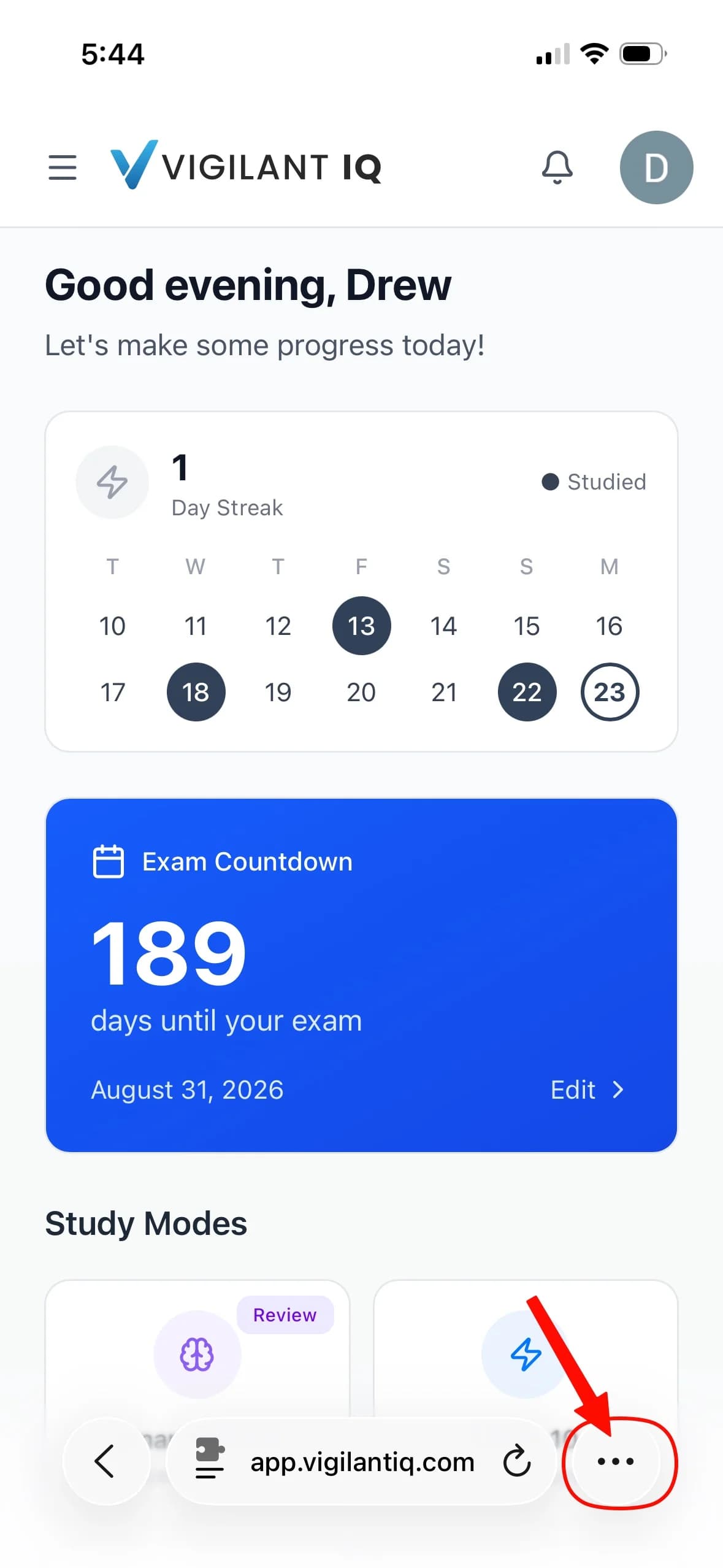
Open Safari and go to app.vigilantiq.com. Log in to your account so you are looking at your dashboard.
Step 2. Tap the Share button
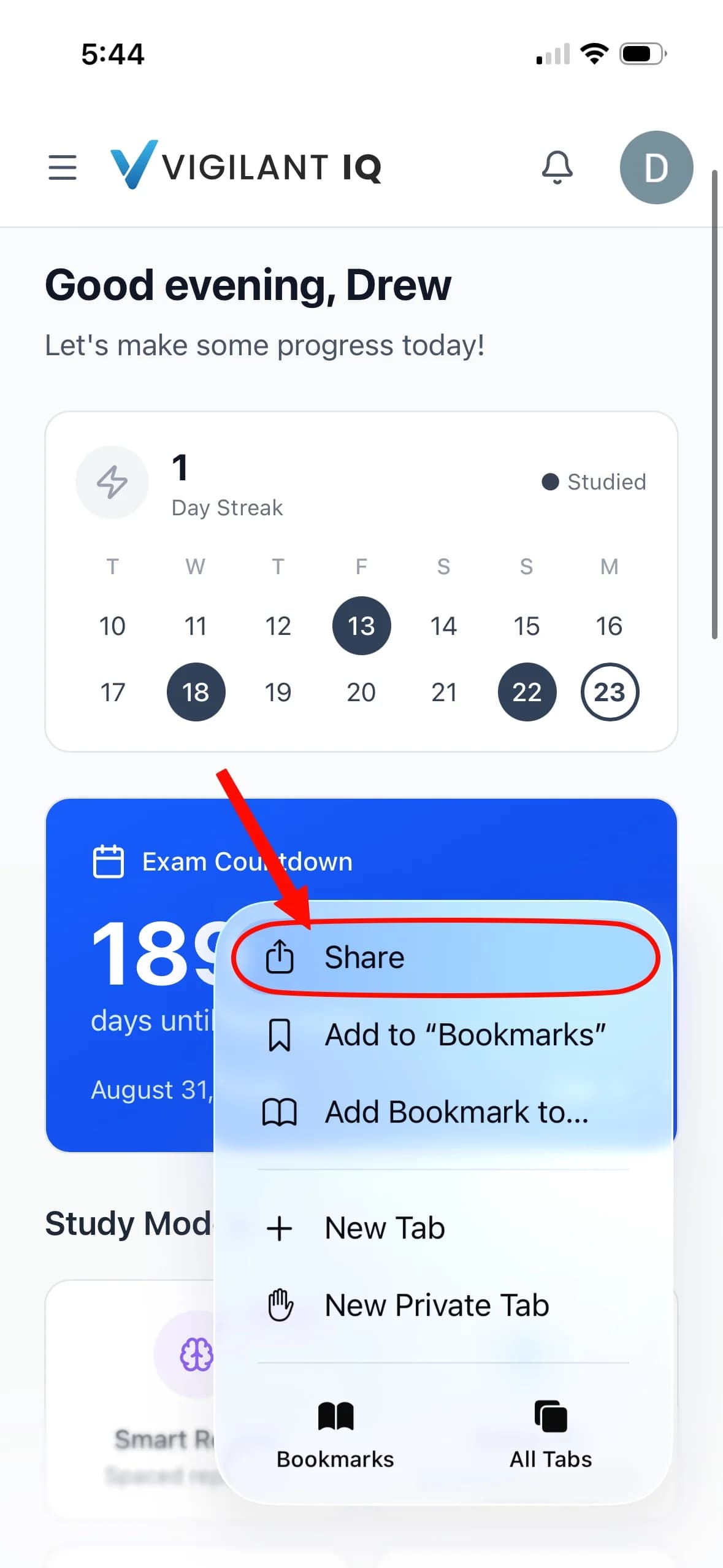
Tap the three dots at the right end of the address bar. On older versions of iOS there are no dots: look for the Share icon, a square with an arrow pointing up, in the bottom toolbar. Chrome on iOS works too, with the Share icon in its address bar and everything from step 3 the same.
Step 3. Choose Add to Home Screen
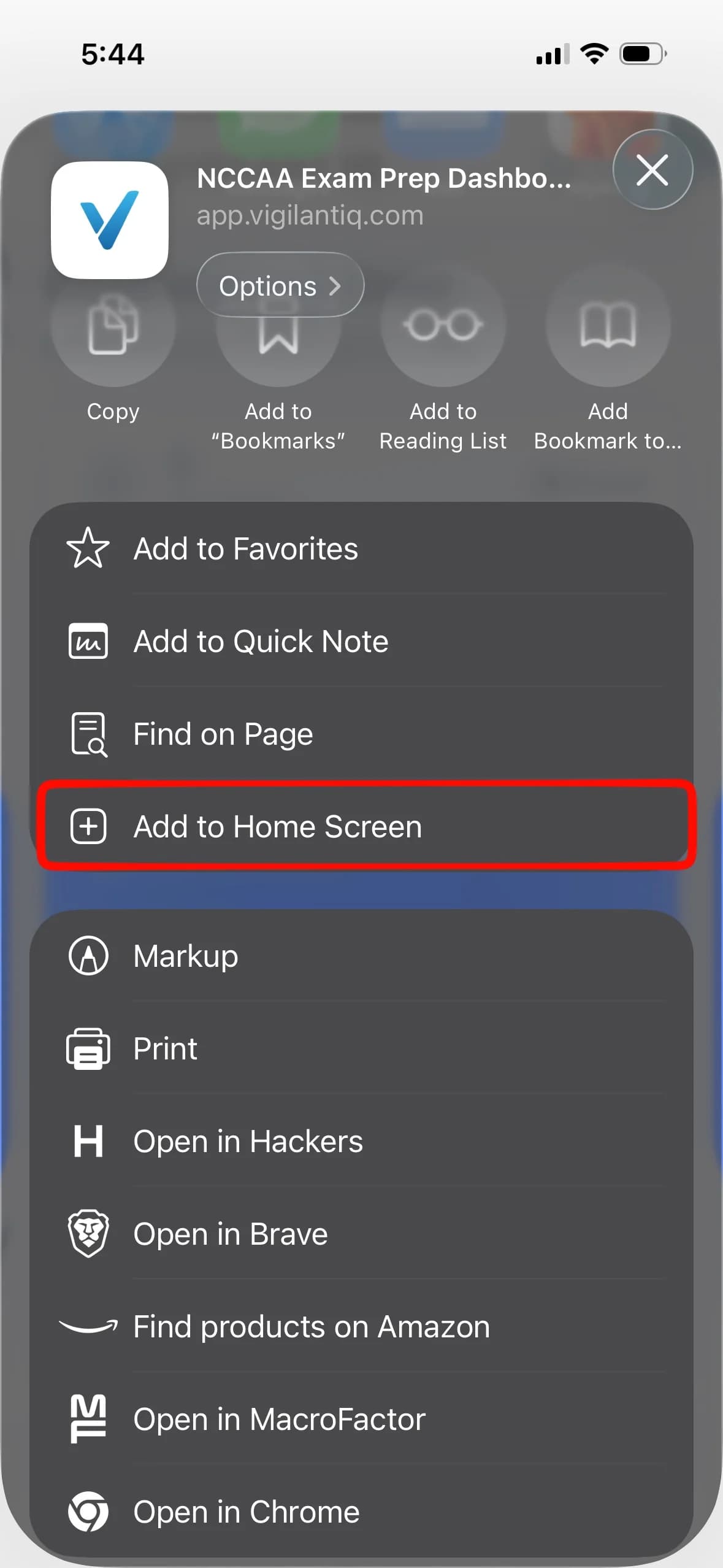
Scroll down the share sheet and tap Add to Home Screen. Depending on your version of iOS it can sit a long way down the list.
Step 4. Tap Add
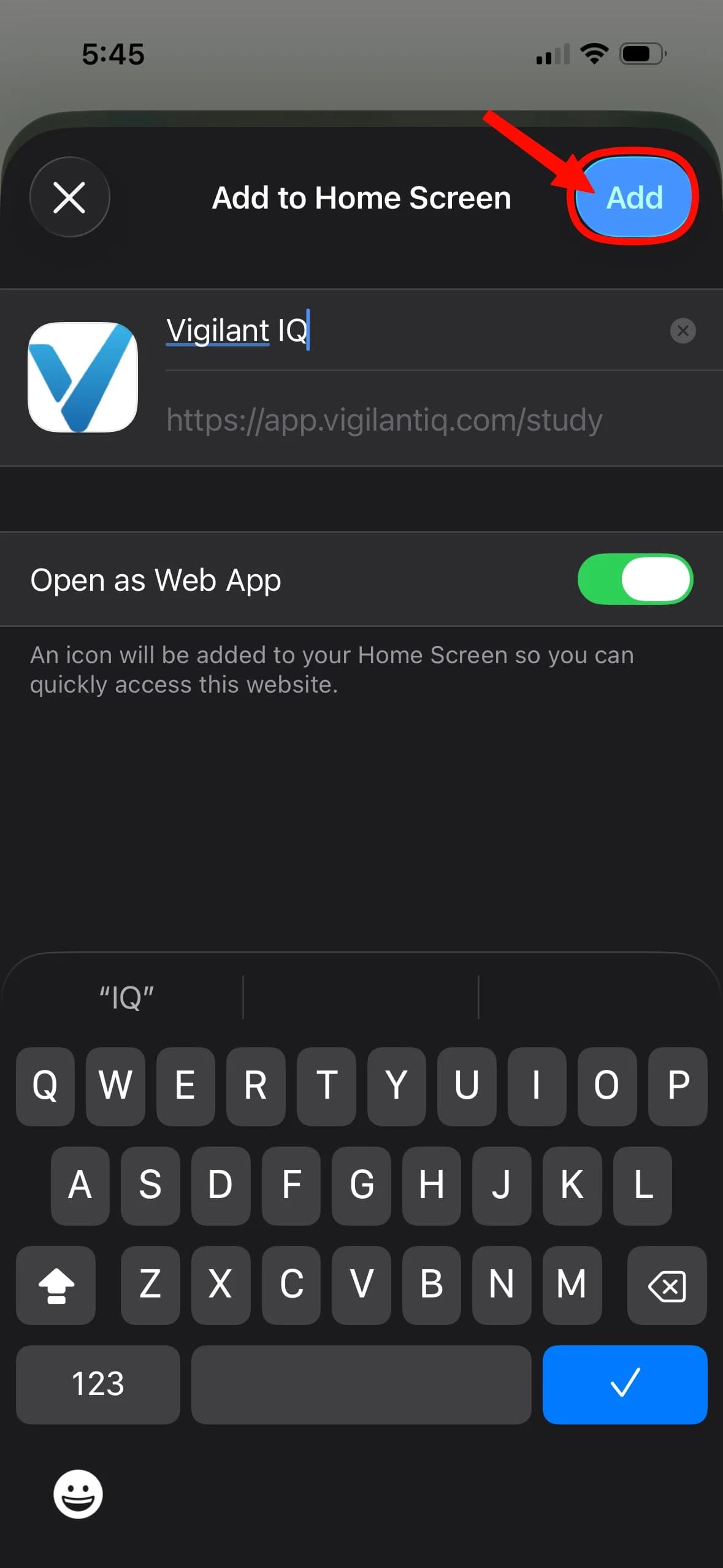
Check the name and tap Add in the top right corner. Vigilant IQ lands on your home screen.
Once it is there
Open it from the home screen from now on and it runs full screen, with no browser bars in the way.
Still not working?
Tell us your device and browser and we will walk you through it.